Cookery is currently under review for official release
Track our progress on the Raycast Extensions PR for the latest updates.

Need a hand?
We're ready to whisk away your problems.
Getting Started
Learn how to install and configure Cookery for Raycast.
loginAuthentication
Learn about signing in and using Cookery without an account.
settingsConfiguration
Configure your Cookery extension settings, API keys, and custom providers.
error_outlineTroubleshooting
Solve common issues with different AI providers.
Getting Started with Cookery
Search for Cookery in the Raycast Store and install it.
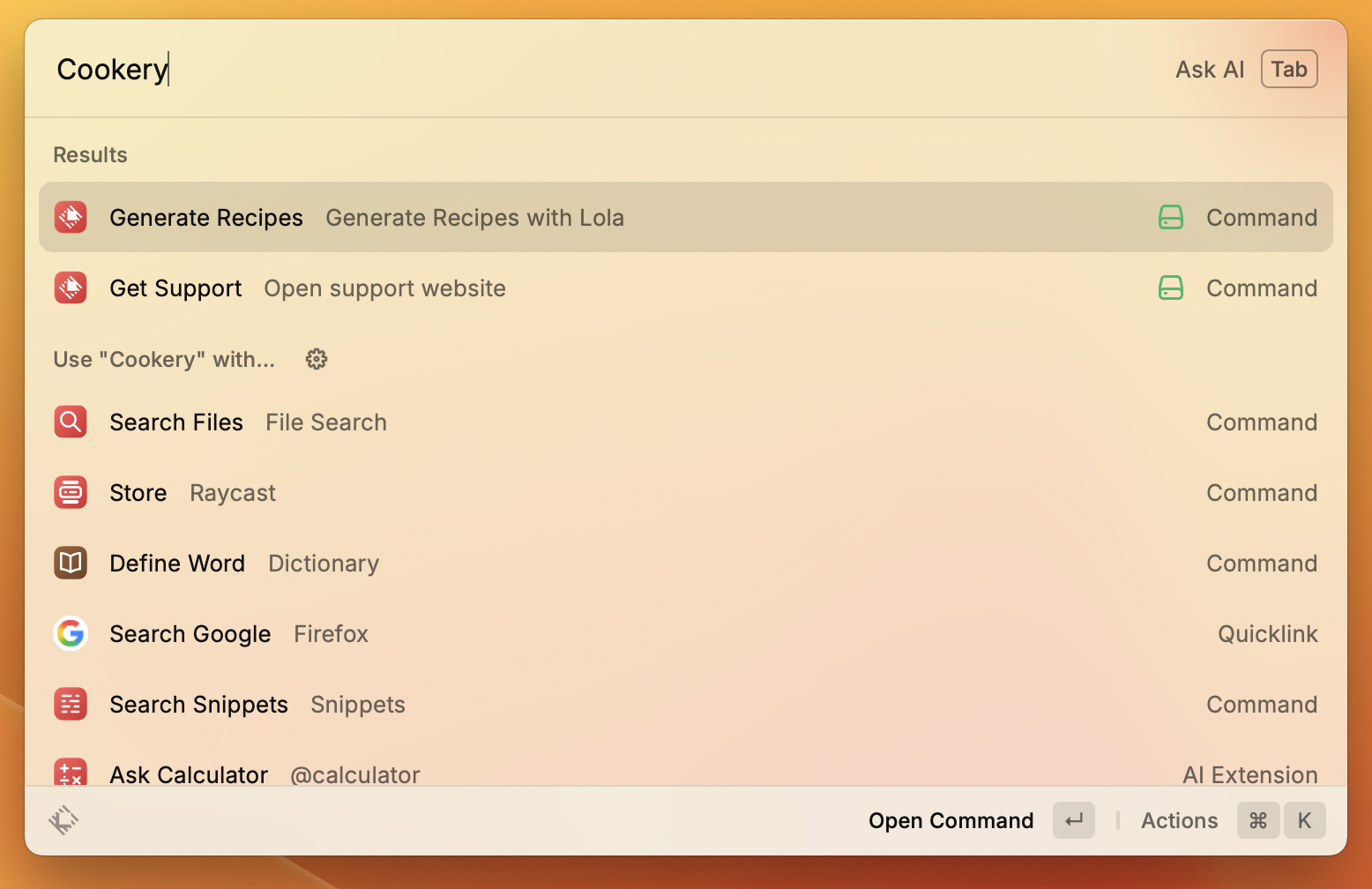
Step 1: Find Cookery in Raycast
Once installed, search for Cookery in the search bar and click "Generate Recipes" to start using the extension.
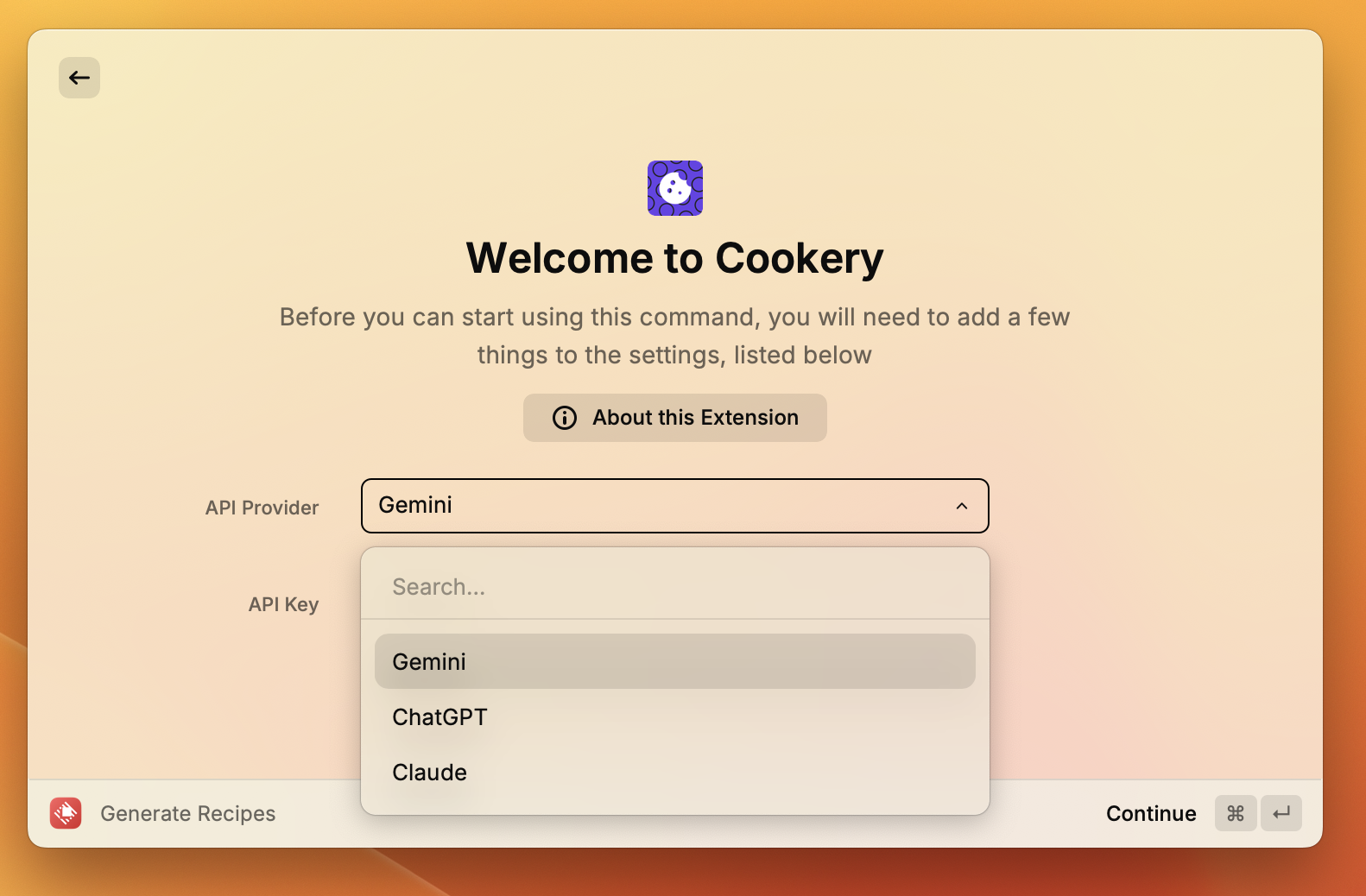
Step 2: Configure Your API Key
Once you've selected the command to Generate Recipes, you'll be prompted to configure the extension with your API key. Cookery supports multiple providers, so pick your preferred provider from the dropdown menu.
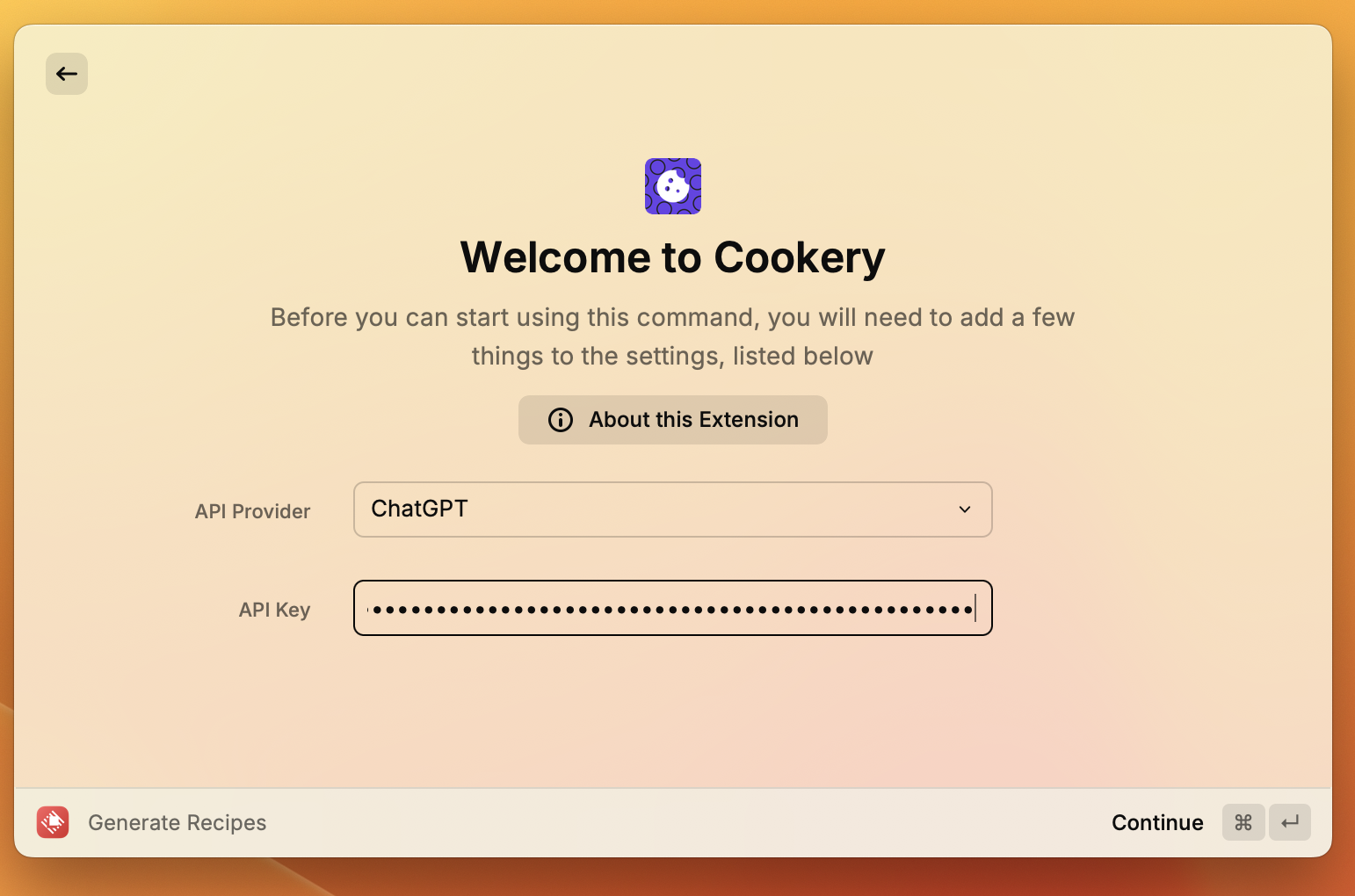
Step 3: Enter Your API Key
To use Cookery, you'll need an API key. You can get one from your AI provider's website. Enter your API key in the settings to activate the extension, then click continue.
Authentication
Learn about signing in, using Cookery without an account, and managing your authentication.
Why Sign In?
Signing in is simply a way to support the project. It's completely optional and not required to use Cookery.
Learn more about why sign in →Using Cookery Without an Account
You can use Cookery without signing in – it's completely optional. The core functionality works perfectly fine without an account.
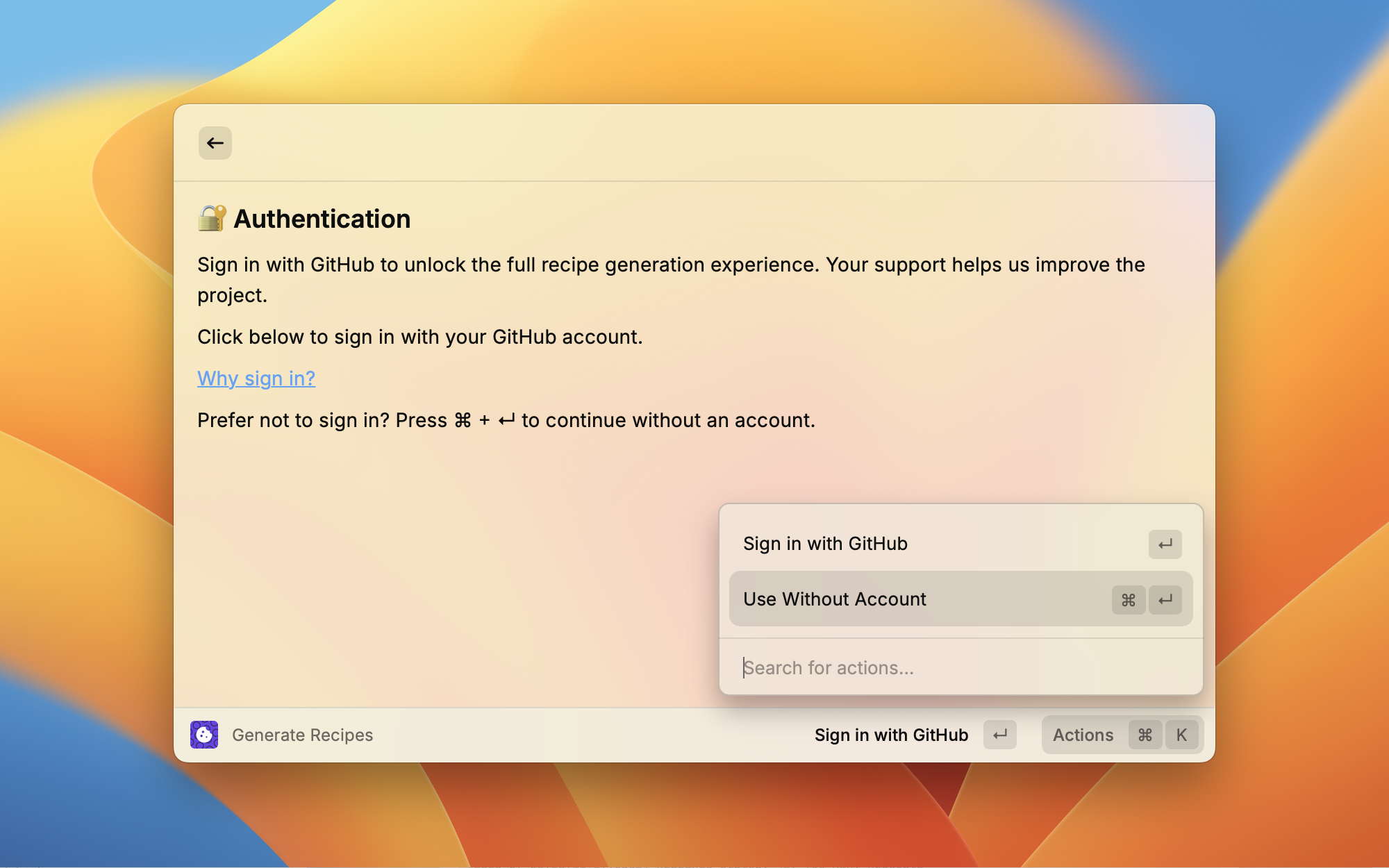
Solution: Simply click "Use without account" to start using Cookery immediately without signing in.
How to Sign In
If you'd like to support the project by signing in, follow these steps:
Step 1: Click "Sign in with GitHub"
When you first open Cookery, you'll see a sign-in prompt. Click "Sign in with GitHub" to begin the authentication process.
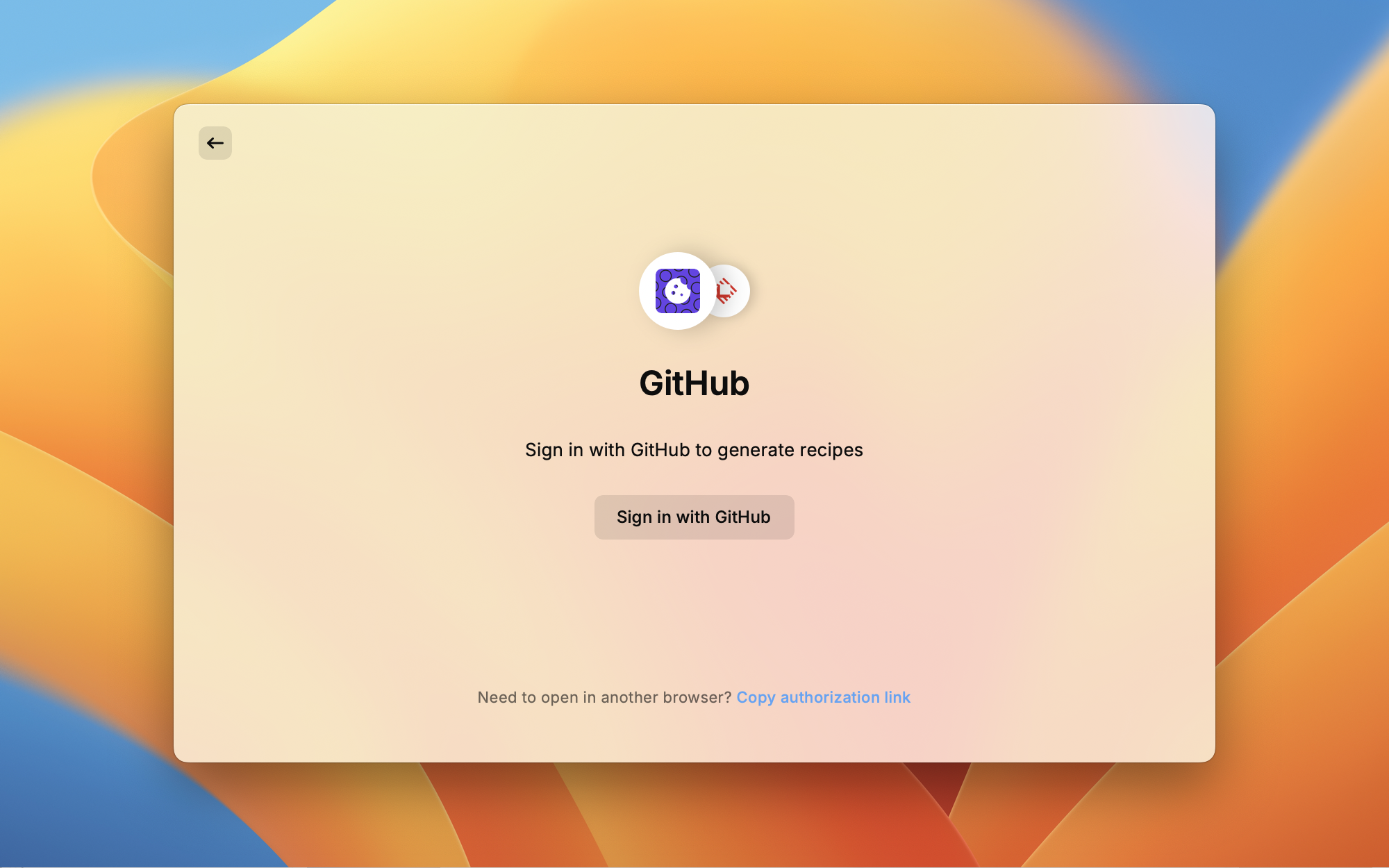
Step 2: Click "Sign in with GitHub" Again
Raycast wants to confirm that you wish to login. Click "Sign in with GitHub" again to continue.
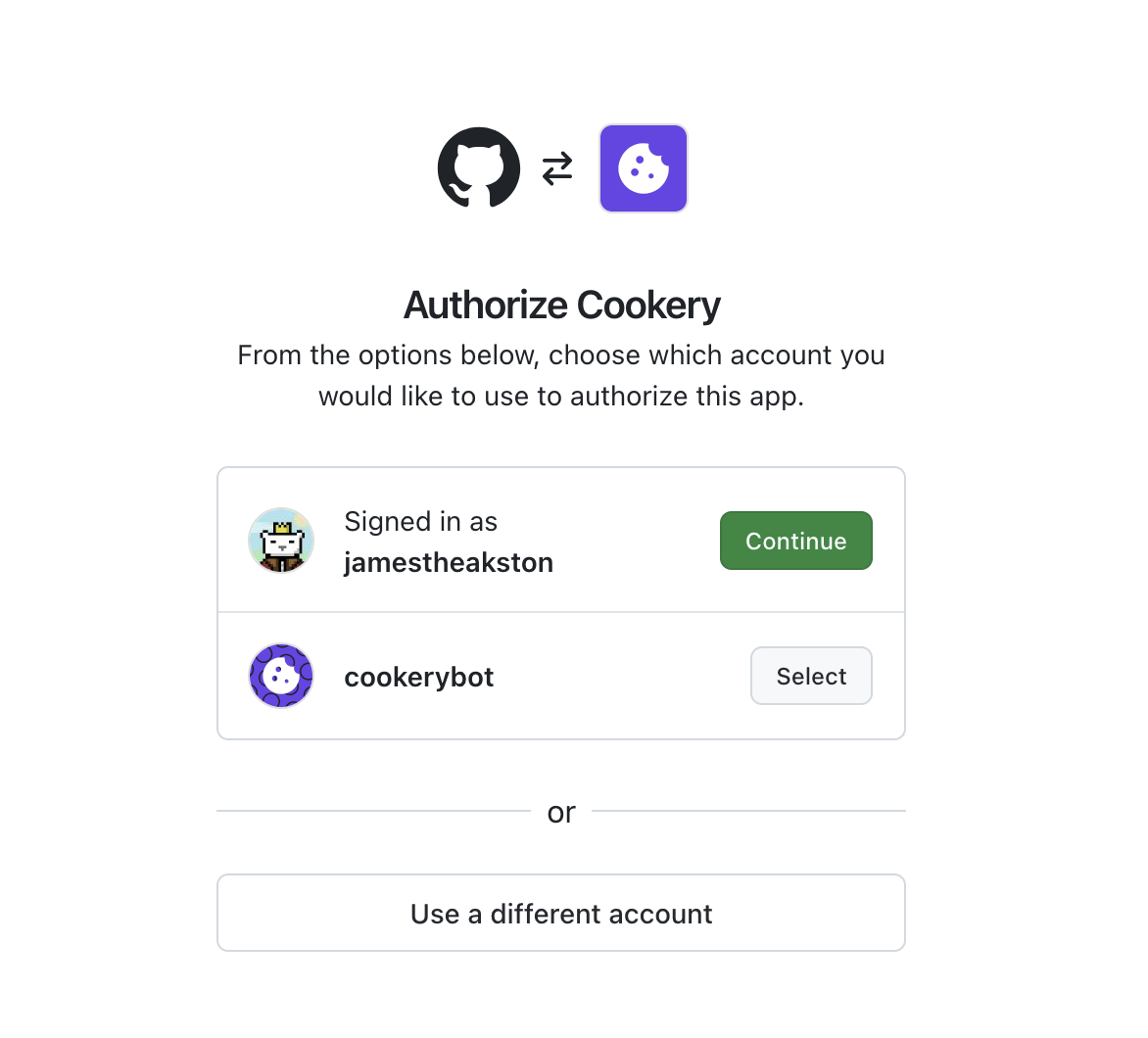
Step 3: Choose Your Account
If this prompt appears, choose your preferred account to continue with the authentication.
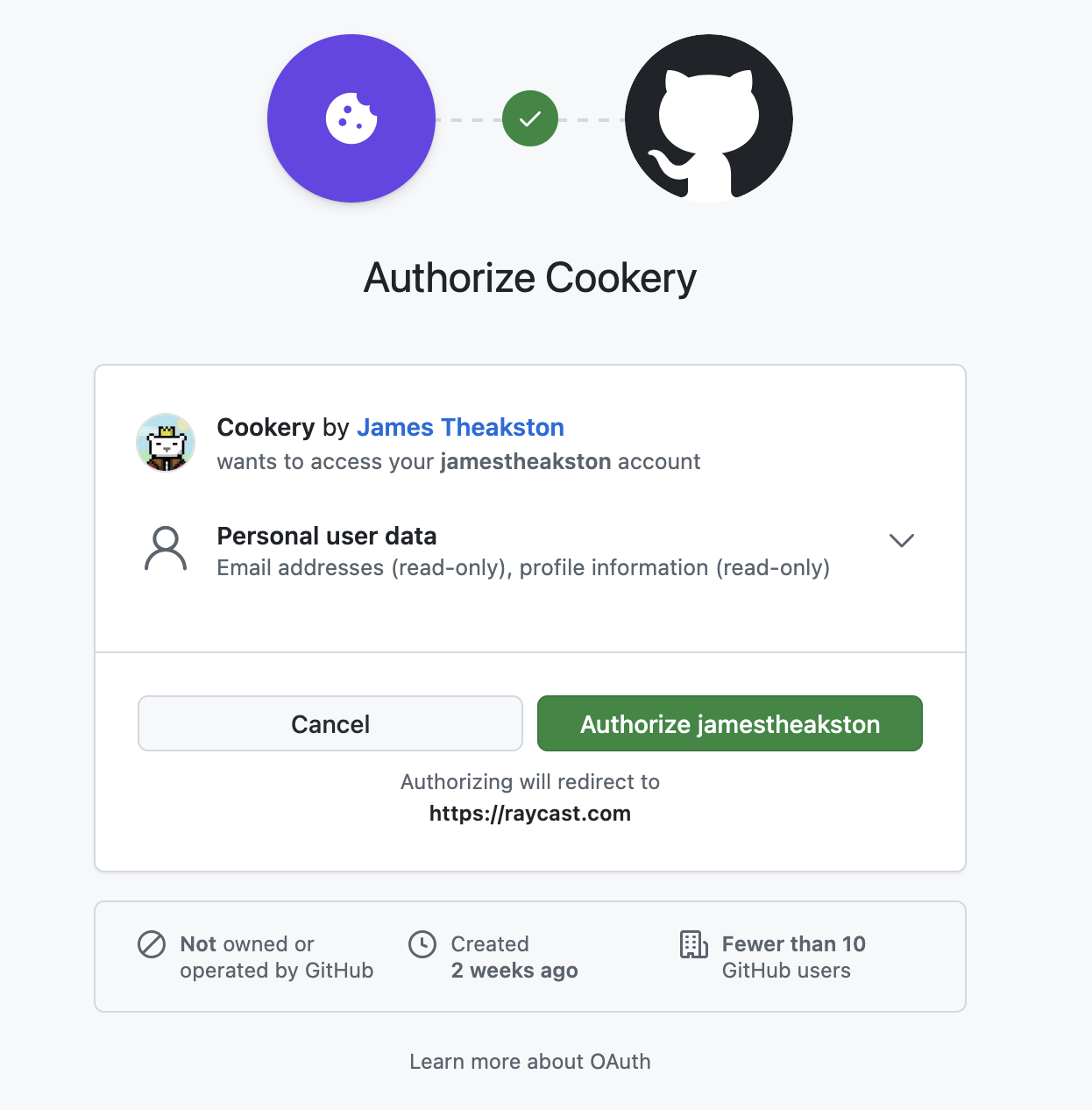
Step 4: Authorize the Application
Once the consent screen shows up, click "Authorize jamestheakston". This is the creator of the app and is required to complete the authentication process.
Step 5: Complete Sign In
Once you've clicked "Authorize jamestheakston", Raycast will open again and show the login completion screen. If this doesn't appear, just open Raycast manually.
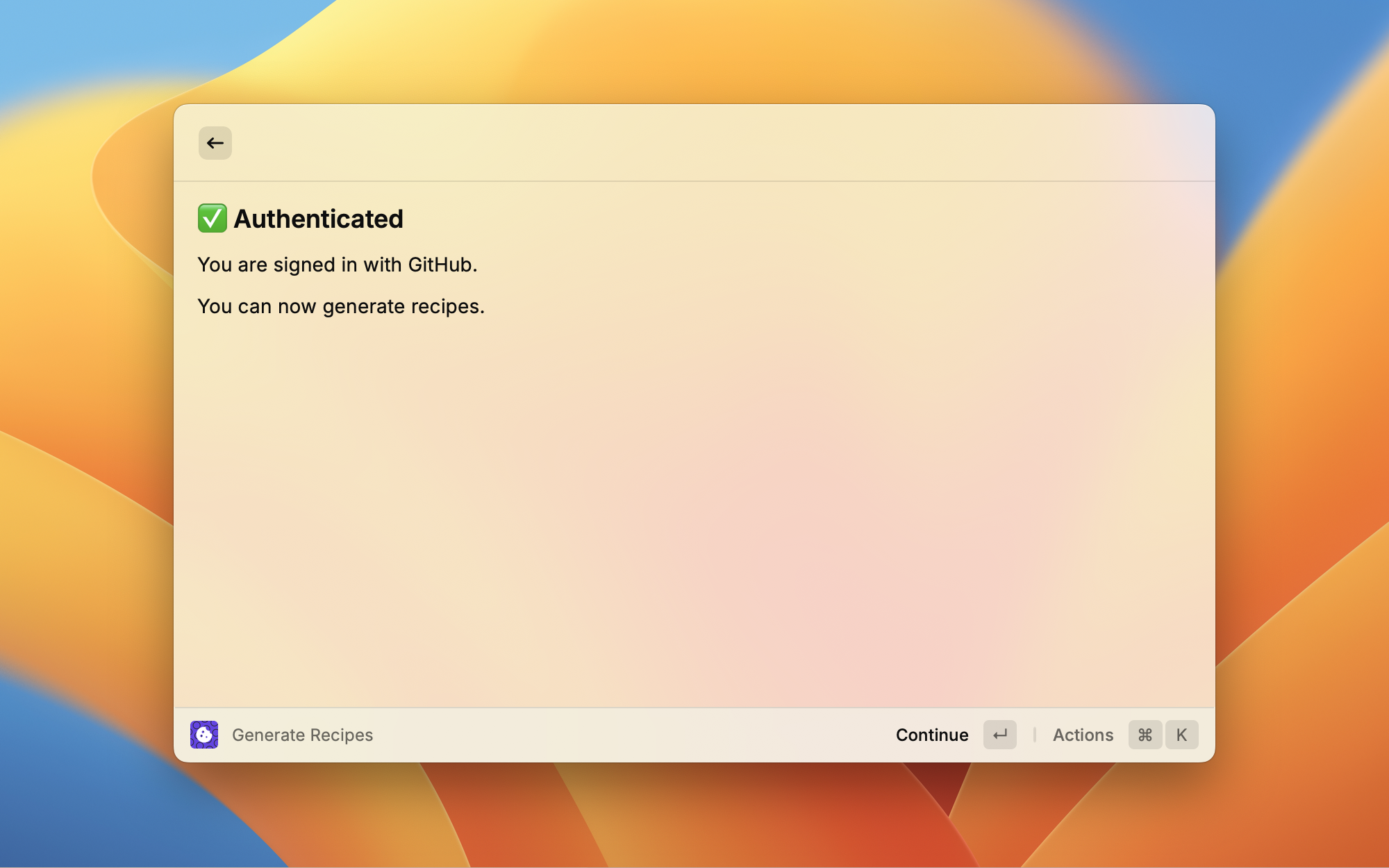
Final Step: Click "Continue" and you can start generating recipes!
Managing Your OAuth Connection
You can manage your OAuth connection and view your authentication status in the settings.
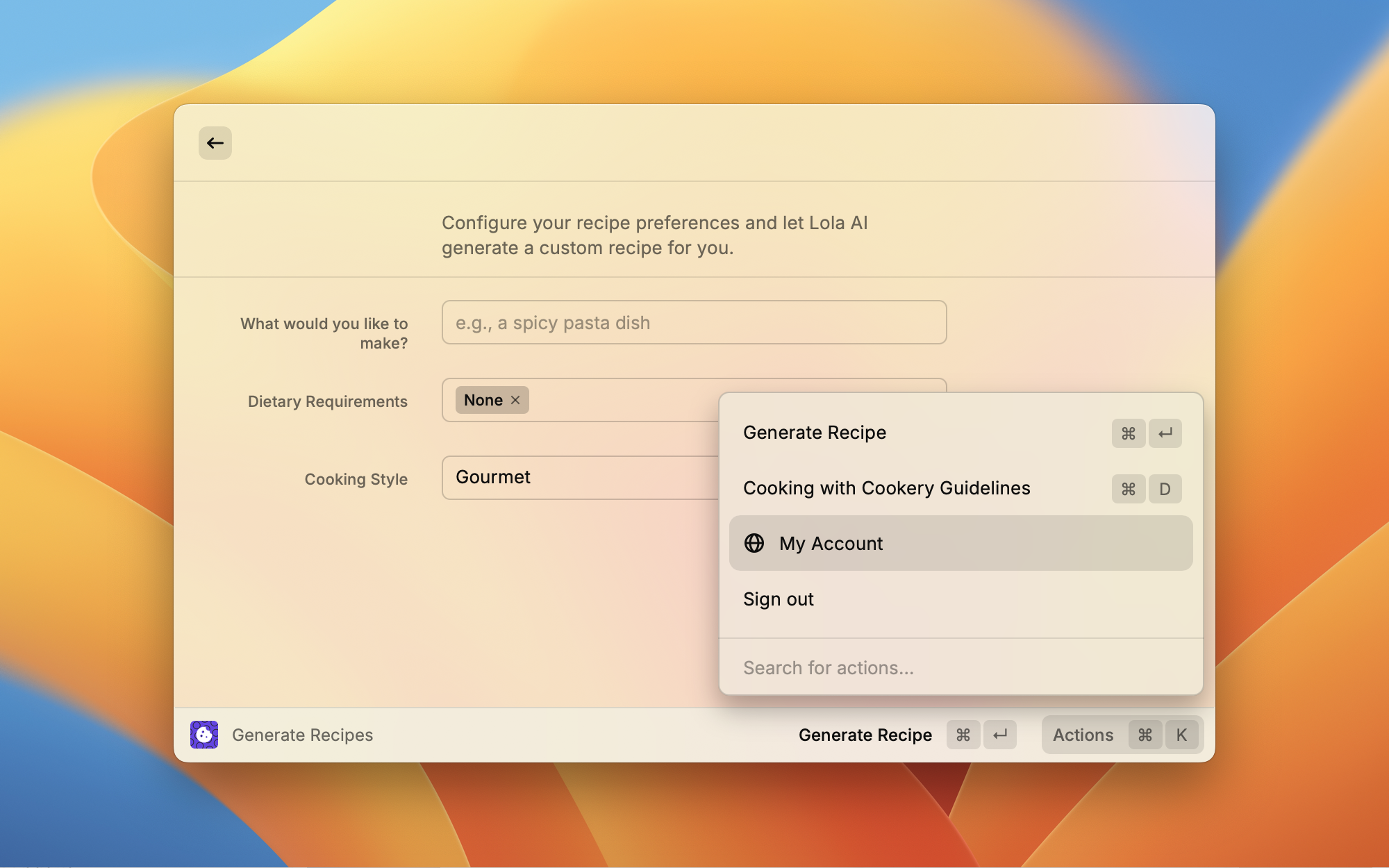
How to Sign Out
If you want to sign out of your account, you can do so from the settings menu.
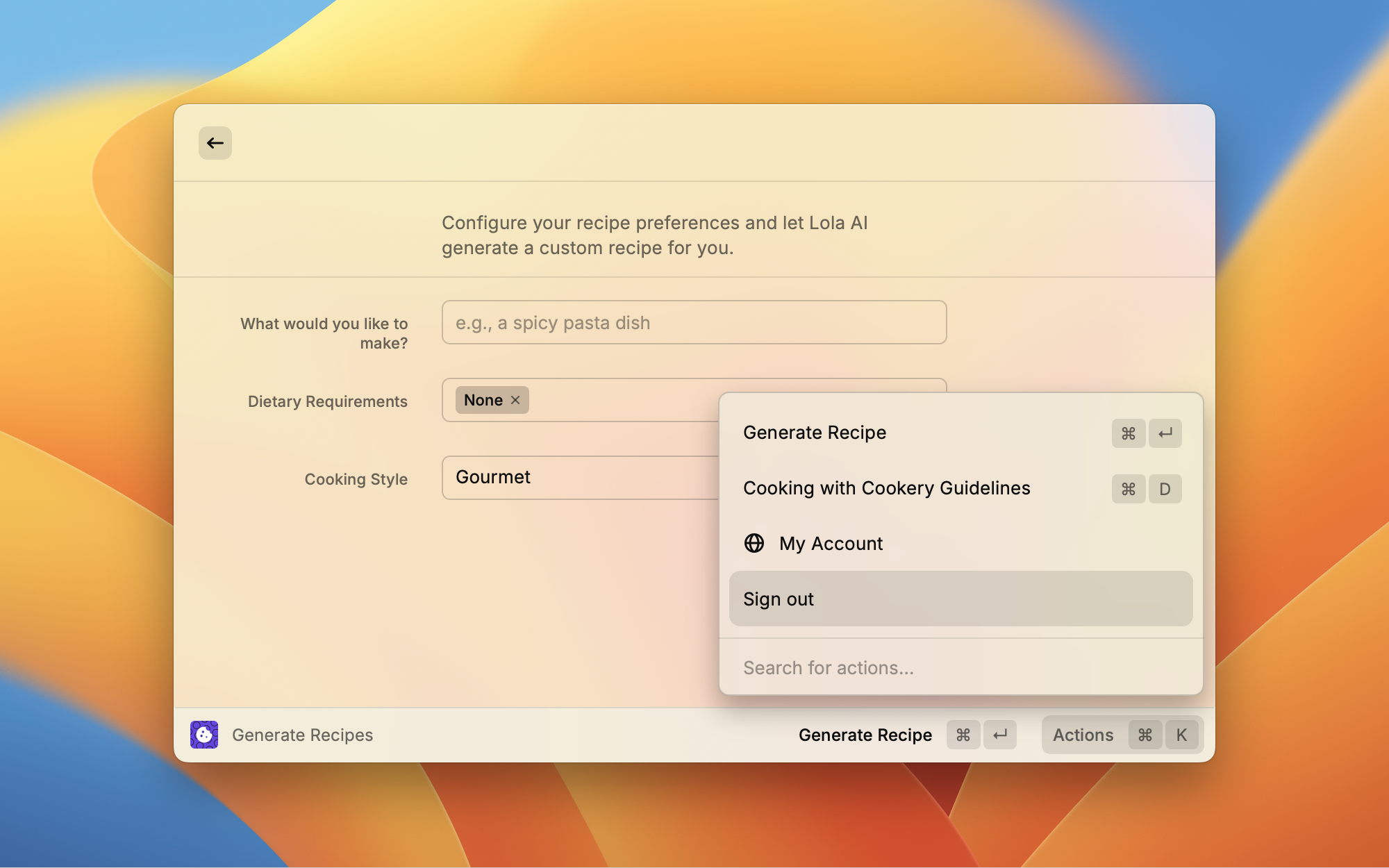
Solution: Click the sign out button in the authentication settings to disconnect your account.
Configuration
Configure your Cookery extension settings, API keys, and custom providers.
Generating Recipes
Once configured, you can start generating delicious recipes with Cookery.
Step 1: Find Cookery in Raycast
Search for Cookery in the search bar and click "Generate Recipes" to start generating recipes.
Step 2: Enter Your Prompt
Type what you'd like to cook or the ingredients you have.
Step 3: Select Cooking Style & Dietary Requirements
Choose your preferred cooking style and dietary requirements.
Step 4: Generate Your Recipe
Press Enter or click the generate button to create your recipe.
Default Cooking Style
Set your preferred cooking style that will be used as the default when generating recipes. You can choose from options like Quick and Easy, Gourmet, Traditional etc.
Dietary Requirements
Configure your dietary preferences and restrictions. Cookery will automatically filter recipes to match your requirements, such as vegetarian, vegan, gluten-free, dairy-free, or nut-free options.
API Provider Settings
Manage your AI provider settings. You can switch between different providers (OpenAI, Anthropic, etc.) and update your API keys.
How to Get API Keys
Select your provider to get step-by-step instructions for obtaining an API key.
Custom Providers
Use any compatible AI provider by configuring your own custom endpoint and API key. This gives you flexibility to use local models, private deployments, or other AI services.
Custom providers allow you to connect Cookery to any AI service that follows standard API patterns, including OpenAI-compatible APIs, Anthropic-compatible APIs, local LLMs (Ollama, LocalAI), and self-hosted solutions.
Troubleshooting
Common issues and solutions for using Cookery with different AI providers.
API Key Prompt
If you see this prompt, it means a provider is configured but no API key has been entered yet.
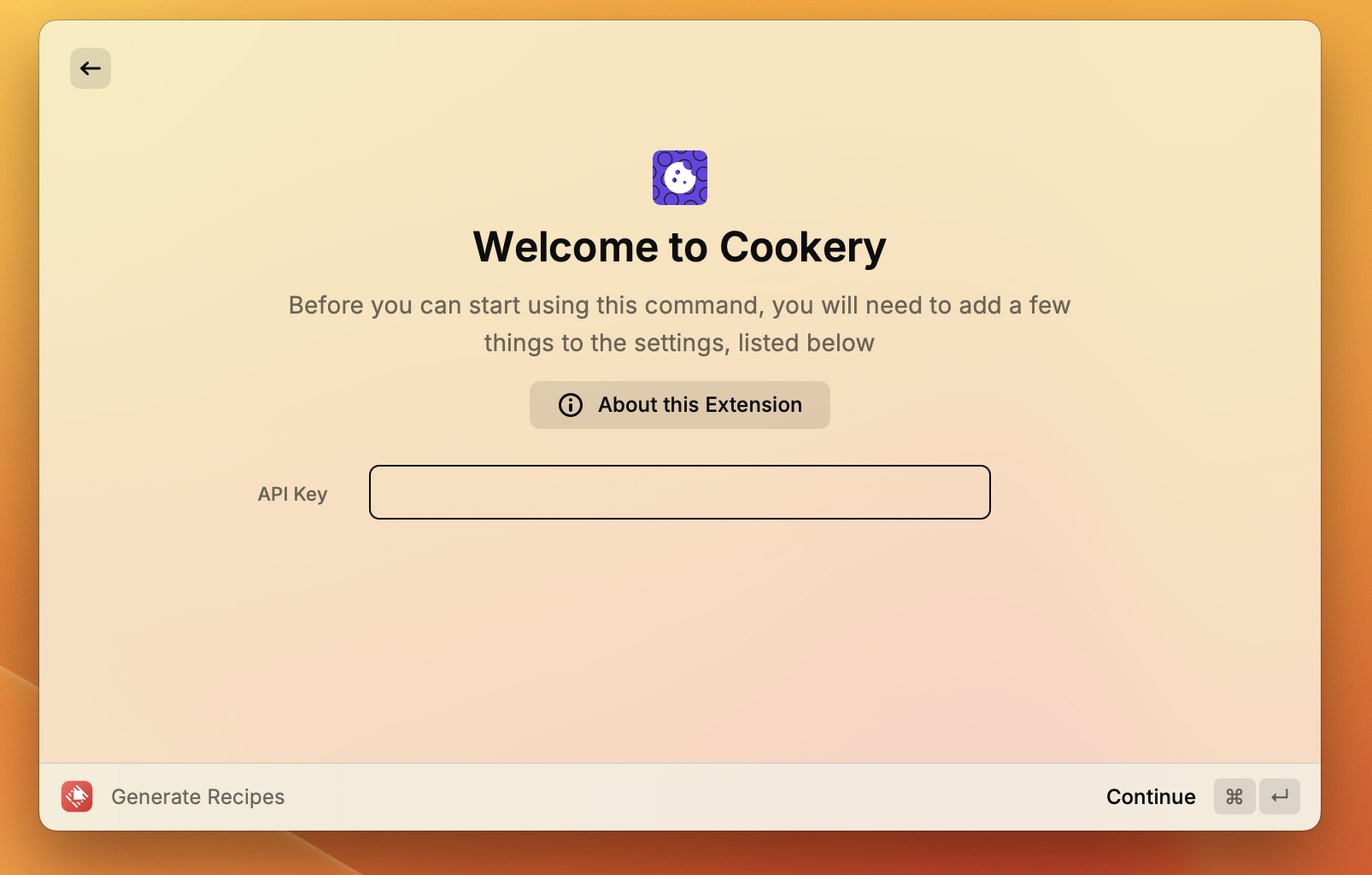
Solution: Enter your API key in the settings to activate the provider.
Bad Request - Invalid API Key
If you receive a "Bad Request" error when using Gemini, this typically means your API key is invalid or has been entered incorrectly.
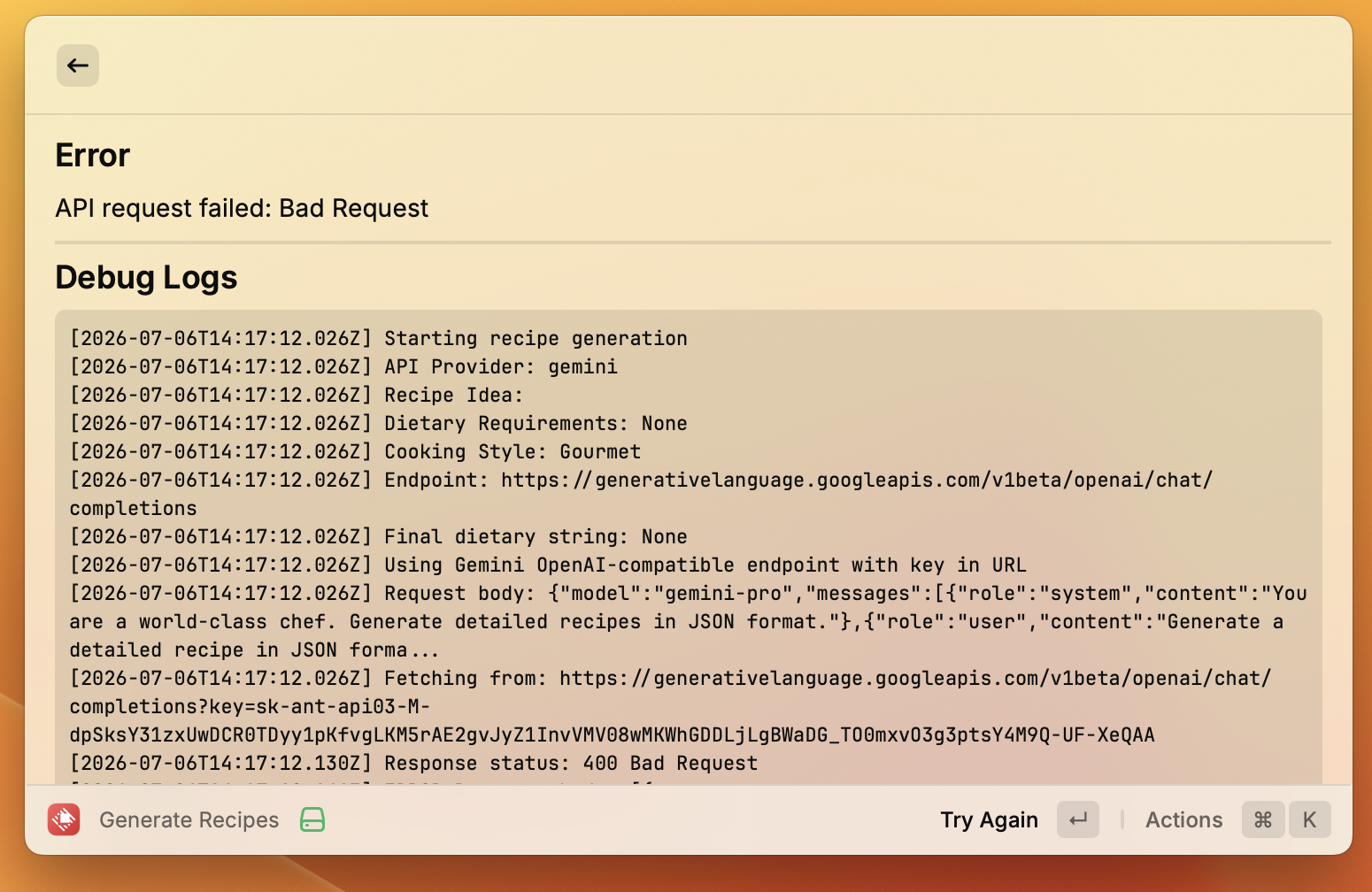
Solution: Double-check your API key in settings and ensure it matches the key from your Google AI Studio account.
Service Unavailable - High Demand
If you receive a "Service Unavailable" error, this typically means there is high demand for the Gemini model at the moment.
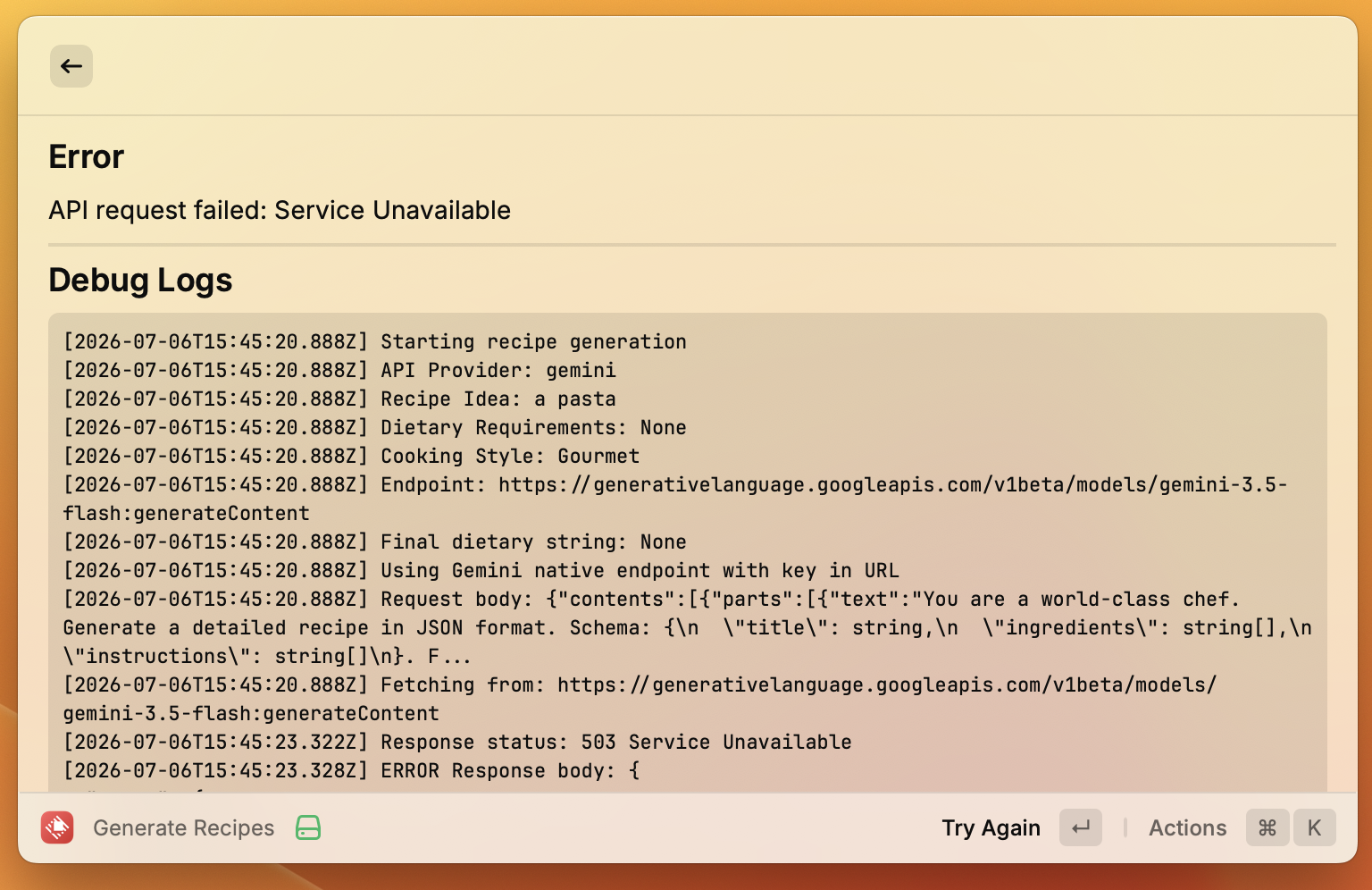
Solution: Wait a few minutes and try again. The service should become available once demand decreases.
Too Many Requests
If you receive a "Too Many Requests" error, this means you have exceeded the rate limit for your API key or have requested the API too frequently.
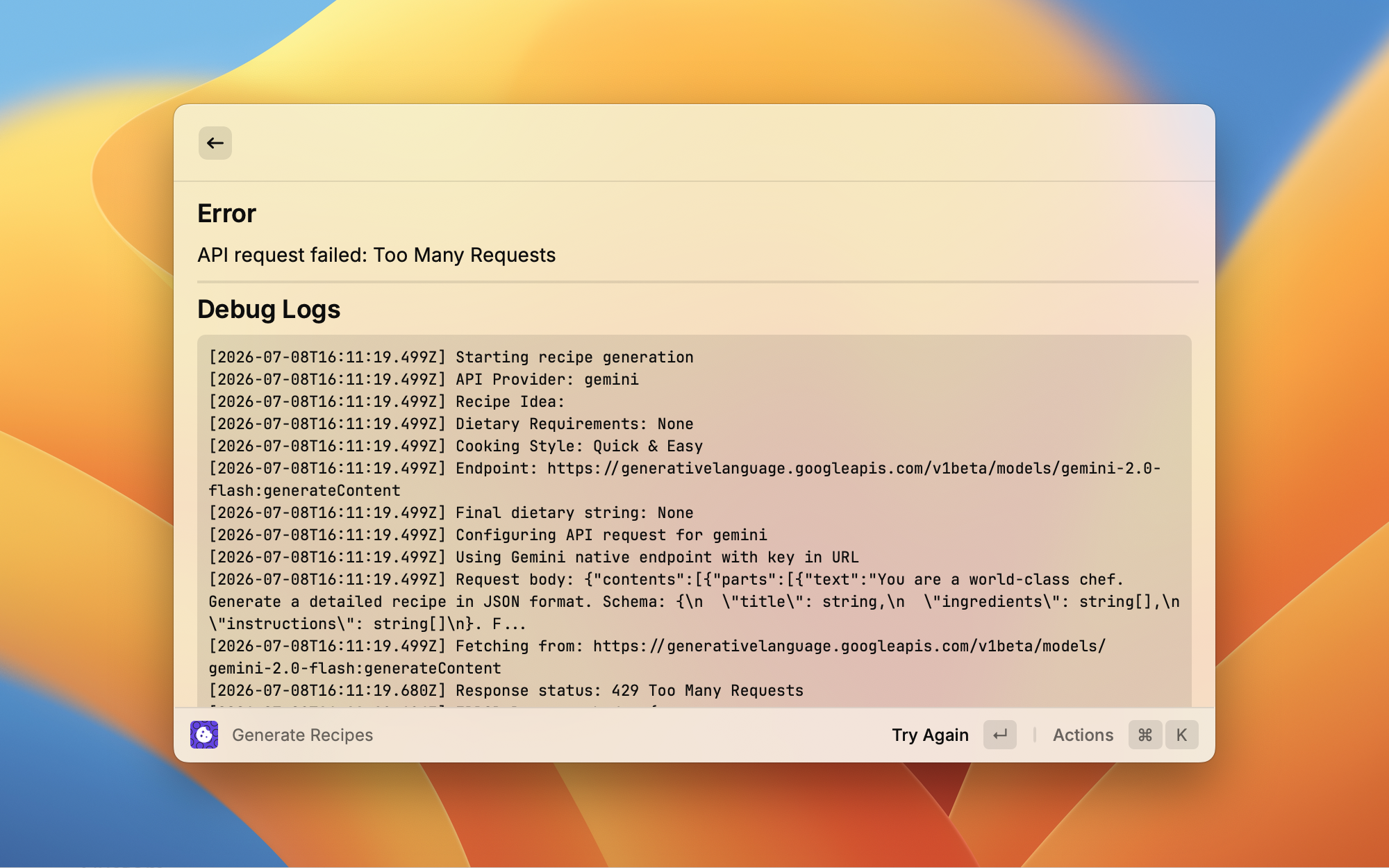
Solution: Wait a few minutes before trying again. Consider upgrading your plan if you frequently hit rate limits, or space out your requests.
API Key Prompt
If you see this prompt, it means a provider is configured but no API key has been entered yet.
Solution: Enter your API key in the settings to activate the provider.
Bad Request - Quota Expired
If you receive a "Bad Request" error with Claude indicating quota issues, your API usage has exceeded your current plan limits.
.png)
Solution: Check your Anthropic account billing and upgrade your plan or wait for your quota to reset.
Unauthorized - Invalid API Key
If you receive an "Unauthorized" error code, this means an invalid API key has been provided for Claude.
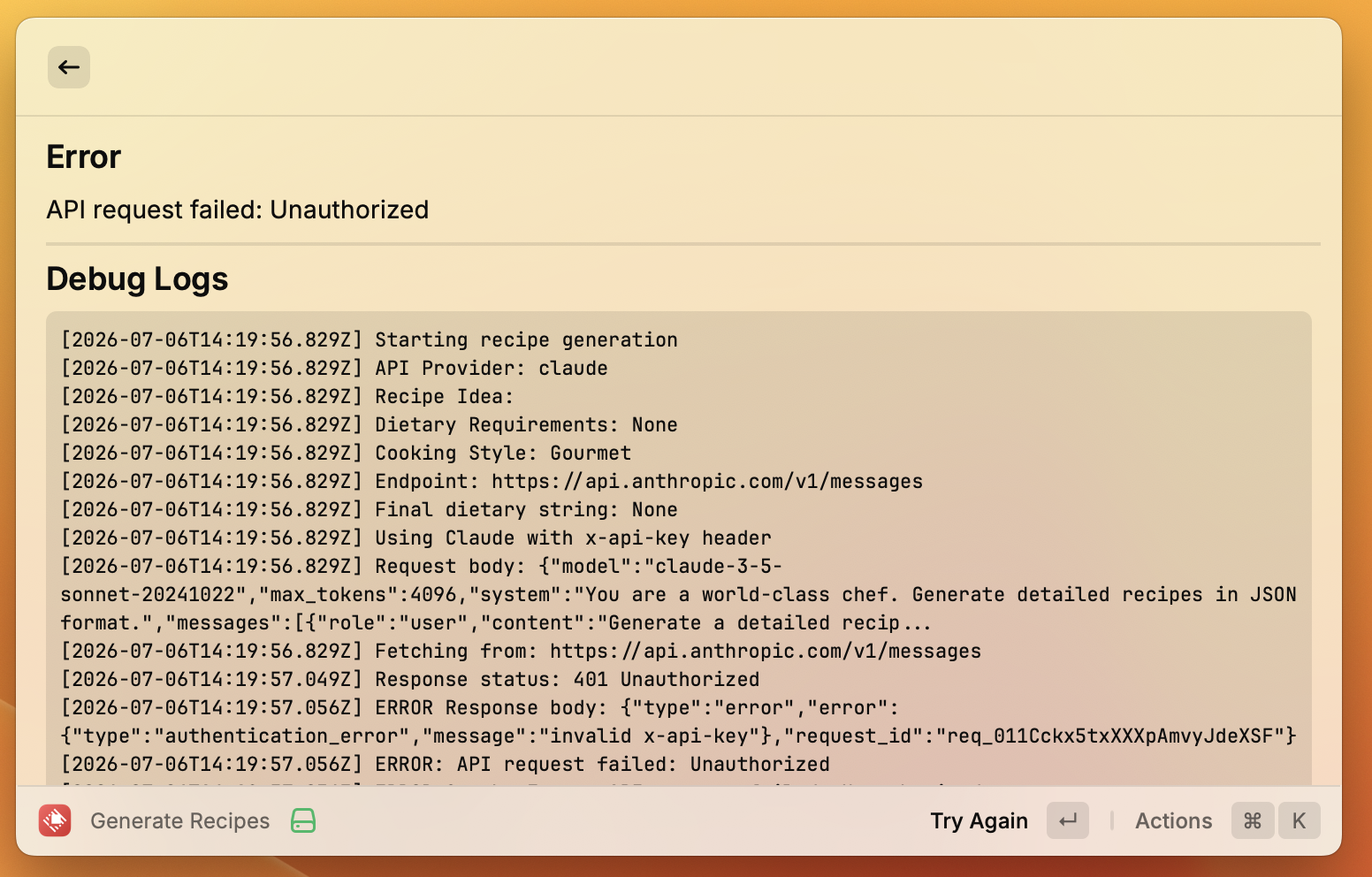
Solution: Verify your API key in settings and ensure it's the correct key from your Anthropic account.
Service Unavailable - High Demand
If you receive a "Service Unavailable" error, this typically means there is high demand for the model at the moment. This error is primarily associated with Gemini but may also occur with Claude during peak usage times.
Solution: Wait a few minutes and try again. The service should become available once demand decreases.
Coming Soon
Troubleshooting guidance for OpenAI is coming soon. Check back later for detailed guides and solutions.
Custom Provider Data Invalid
If you see this error, it means the custom provider configuration is incomplete. You need to provide both an endpoint URL and a model name in the preferences.
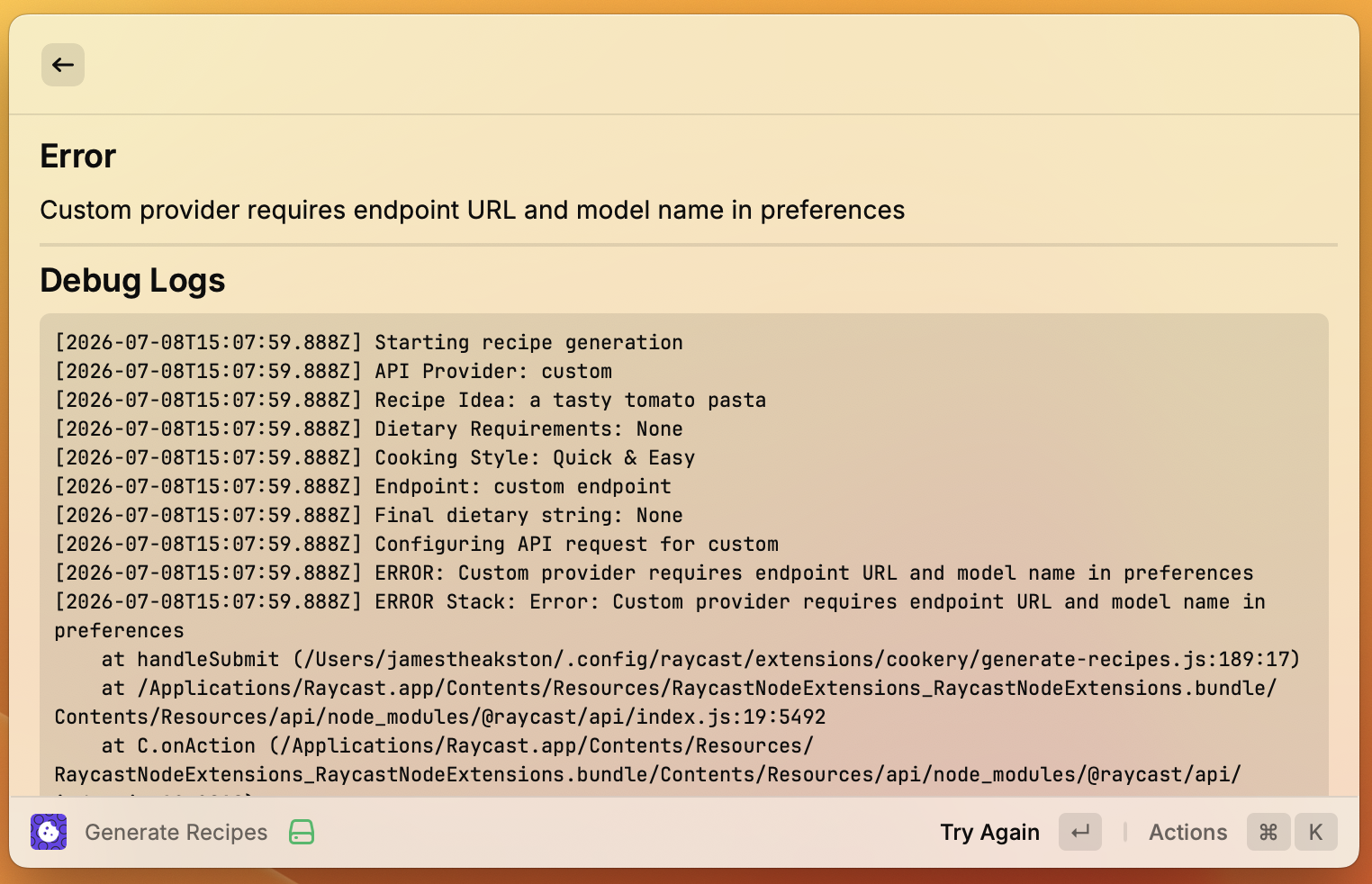
Solution: Go to Cookery extension settings and add your custom model name and endpoint URL in the preferences.
Coming Soon
Exciting new features we're working on to enhance your Cookery experience.
Recipe History
View and access your previously generated recipes, making it easy to revisit your favorites or recreate dishes you loved.
Recipe Scaling
Automatically adjust ingredient quantities based on the number of servings you need, from intimate dinners to large gatherings.
Cooking Timer
Built-in timers for each step of your recipes, with notifications to help you stay on track while cooking.
Sharing
Easily share your favorite recipes with friends and family through various platforms and formats.
Ingredient Substitution Suggestions
Get smart suggestions for ingredient substitutions based on what you have available or dietary preferences.
Grocery Delivery Integration
Seamlessly integrate with UK-based grocery delivery apps to order ingredients for your recipes with just a few clicks.
Have more ideas?
We'd love to hear your suggestions for improving Cookery.